
WordPress Email Template Designer – WP HTML Mail
Functionality: Email Template Design, Page Content & Text
Description
All in one email designer for your contact forms
- Responsive & Device independent: Our e-mail template has been tested in all major desktop, web and mobile mailclients.
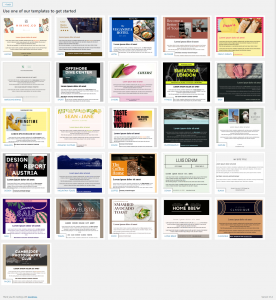
- Template library: Start your email design with one of our templates created by professional designer
- Text or image header: Either style your email header with colors and text, use your logo or design a banner.
- Customize colors and fonts: Different plugins send different emails but you can define global color and font settings for headlines, text, links and more to give all your emails a common professional look.
- Add your companies legal information to the footer: The email footer can contain links to your legal pages, your contact data or whatever you want.
- Inline CSS: Webclients do not override your styles, because we move all style definitions to inline styles.
- Email test mode: Redirect all emails to your own email address for testing or for your staging system.
- Live Preview: See all your changes immediately in the live preview.
If you would like to customize WooCommerce emails, you will need to purchase the plugin extension for that. It can be found here: https://codemiq.com/en/plugins/wp-html-mail-woocommerce/
If you have purchased the WooCommerce extension, you will need to provide us with the zip file and license keys.
We will only use the built in WooCommerce features that the extension provides.
Requirements
Customer should give us an idea of what they want the email to look like.
We cannot guarantee an exact match, but will get as close as possible.
When to use?
Use this plugin if you need to customize your gravity forms notification emails.
Installation and Configuration
Installation:
Download and install the plugin:
- In your WordPress dashboard, go to Plugins → Add New
- Search for WordPress Email Template Designer – WP HTML Mail
- Click Install Now, then Activate
Configuration:
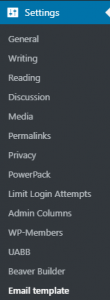
In the black menu bar on the left click on settings and then Email Template.
On the first tab labeled “Template” you will be able to search through the template library or simply click on any of the elements in the preview.
Each section will have options appear on the right side where you can adjust colors, images, alignments and text.
Do not use Canva to edit the templates as suggested. Instead, please use photoshop and save the file to the attachments on the ticket as well as in a zip file in the media library of WordPress for future edits.
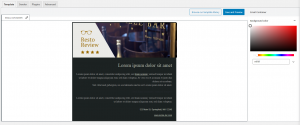
Once you are done with the edits, click the Save and Preview button.
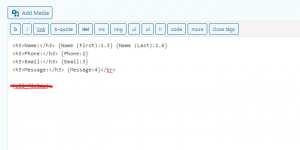
Note: Gravity Forms will automatically add its own styling when using the tag for “All Fields” in the notification email. If you would like to display the content as it shows in the preview for the email template, you will need to go to the notification settings and insert each field, as well as labels, rather than using the All Fields tag.
If the customer has purchased the WooCommerce extension, they will need to provide us with the zip file and license keys.
We will only use the built in WooCommerce features that the extension provides.
Who covers the cost of the plugin?
If the plugin is covered by WDS Plan, please PAY ATTENTION to which WDS plan is this plugin included with.)
WDS Plan
Which WDS plan can this plugin be installed on?
- Standard plan
- Premium plan
- Premium Store (WOO) plan
Functionality Form
The legacy Functionality Form/Worksheet process has been deprecated and is no longer required for scoping or documentation. Instead, the AI Companion – WDS Plugin Support Assistant should be used to generate detailed instructions and requirements for plugin usage.
The generated output can be exported as PDF or DOC files and attached to the relevant ticket or DCT, ensuring a more streamlined and standardized documentation workflow.